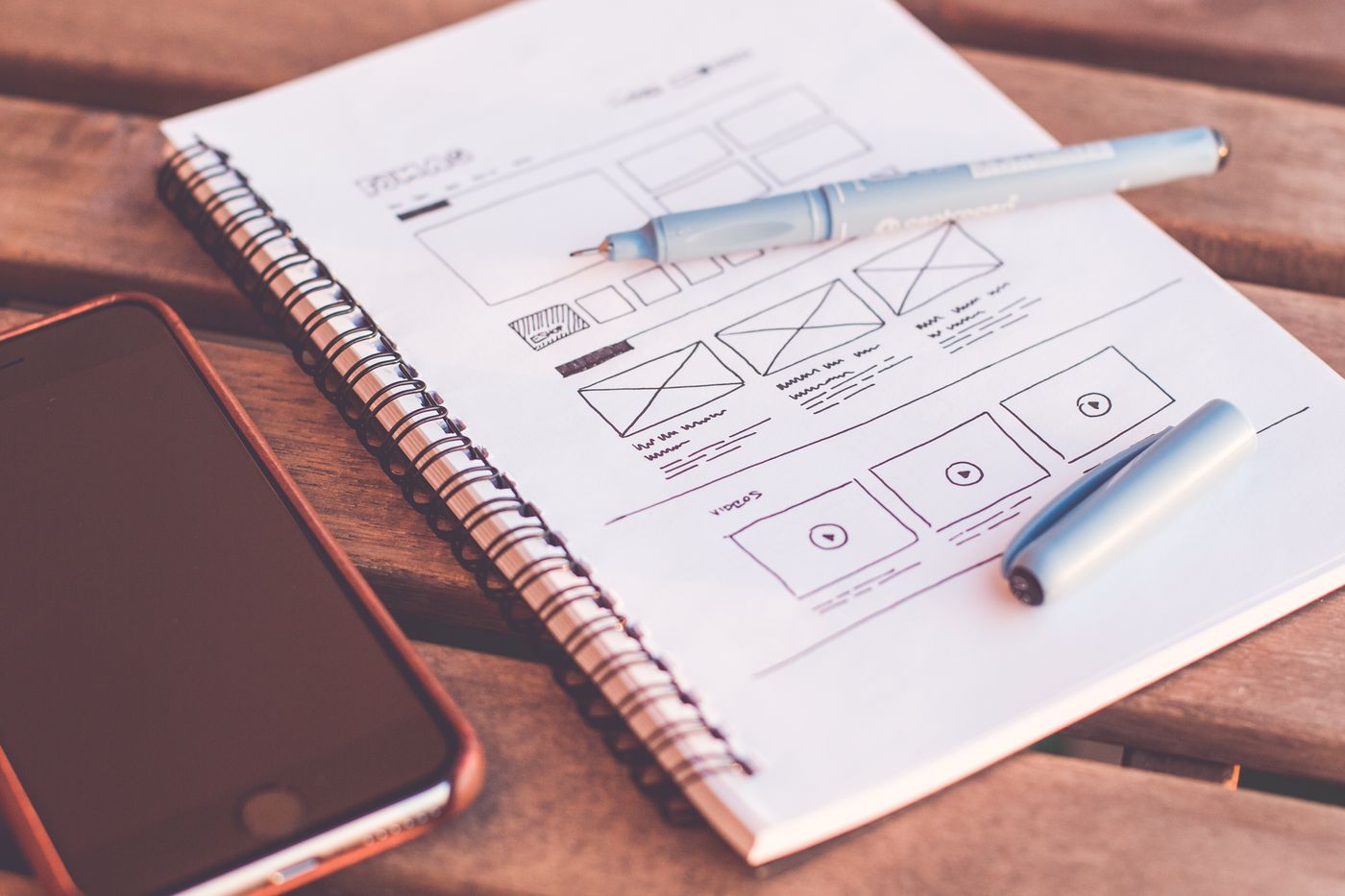
The first job in a redesign is not choosing a new homepage. It is finding out what the existing website already does for people. A page that looks dated may still answer a recurring customer question or appear in a printed brochure. Removing it without a replacement can create work the new design was supposed to reduce.
Collect the current URLs in a simple inventory. Include service pages, articles, downloadable files, product pages where relevant, and less visible landing pages used by campaigns. Note the purpose of each page and whether its information is still accurate.
Separate appearance from usefulness
For each page, choose an initial action: keep, revise, combine, replace, or remove. Do not let visual dislike decide the content action automatically. A useful price explanation may need a new layout rather than deletion. Two thin pages covering the same subject may make more sense as one substantial explanation.
Look at available evidence, such as customer inquiries, search reports, or links from other sites. Traffic alone does not define value. A page used by a small number of existing customers to find essential instructions may still deserve attention.
Ask staff which links they send repeatedly. Sales and support conversations often reveal important pages that are easy to overlook in a homepage-focused review. Include any documents customers have been told to bookmark.
Plan destinations before changing addresses
Create a mapping from each old URL to its intended new location when a relevant replacement exists. Keep working URLs unchanged where there is no reason to alter them. A redesign can change the page presentation without changing its address.
If several old pages are combined, identify the section or new page that genuinely answers the old need. Sending everything to the homepage may leave visitors stranded. Google recommends a planned URL mapping and appropriate redirects for site moves; it also warns that search visibility may fluctuate while a move is processed.
For content that has no suitable replacement, decide how the site should explain its absence. Do not invent an irrelevant destination merely to avoid every not-found response. Update your own navigation and internal links so they lead directly to the intended live content.
Protect the material needed for the build
Save the approved text and original media separately from the visual mockups. Record image permissions, downloadable assets, and content that requires specialist review. If a designer is rewriting copy, make clear which factual details must remain correct.
Choose a review owner for each area. A general manager may approve tone while a service manager verifies inclusions and limits. Consolidate their feedback before handing it back to the designer, so contradictory changes do not become a moving target.
Rehearse the important routes
Test a visitor arriving directly on a service page, following an old campaign link, and using the menu on a phone. Test forms through to receipt, not only the visible confirmation. Check policy links, downloads, and the page-not-found screen.
If the redesign also involves a new domain or platform, consider whether the changes can be separated. Multiple simultaneous changes complicate troubleshooting. Write down the launch order, a rollback plan, and who will be available to respond if a critical function fails.
After launch, review broken-link reports and customer questions. Keep the old-to-new mapping with the project records so later edits do not undo it. A redesign is successful when the new presentation preserves useful routes while improving weak ones, rather than merely replacing every old page with something visually fresh.